
Feedback
AI Ad Video Example
Loading...
MiniMax H3 to Video
With MiniMax H3 to Video, a short text prompt becomes crisp 2K footage with audio baked in — dialogue stays in sync and scene continuity is preserved in minutes.
All Tools
Discover our comprehensive AI-powered animation toolkit

Lyrics to Song
Turn your lyrics into professional songs with AI

Suno 5.5
Create Professional Music with AI
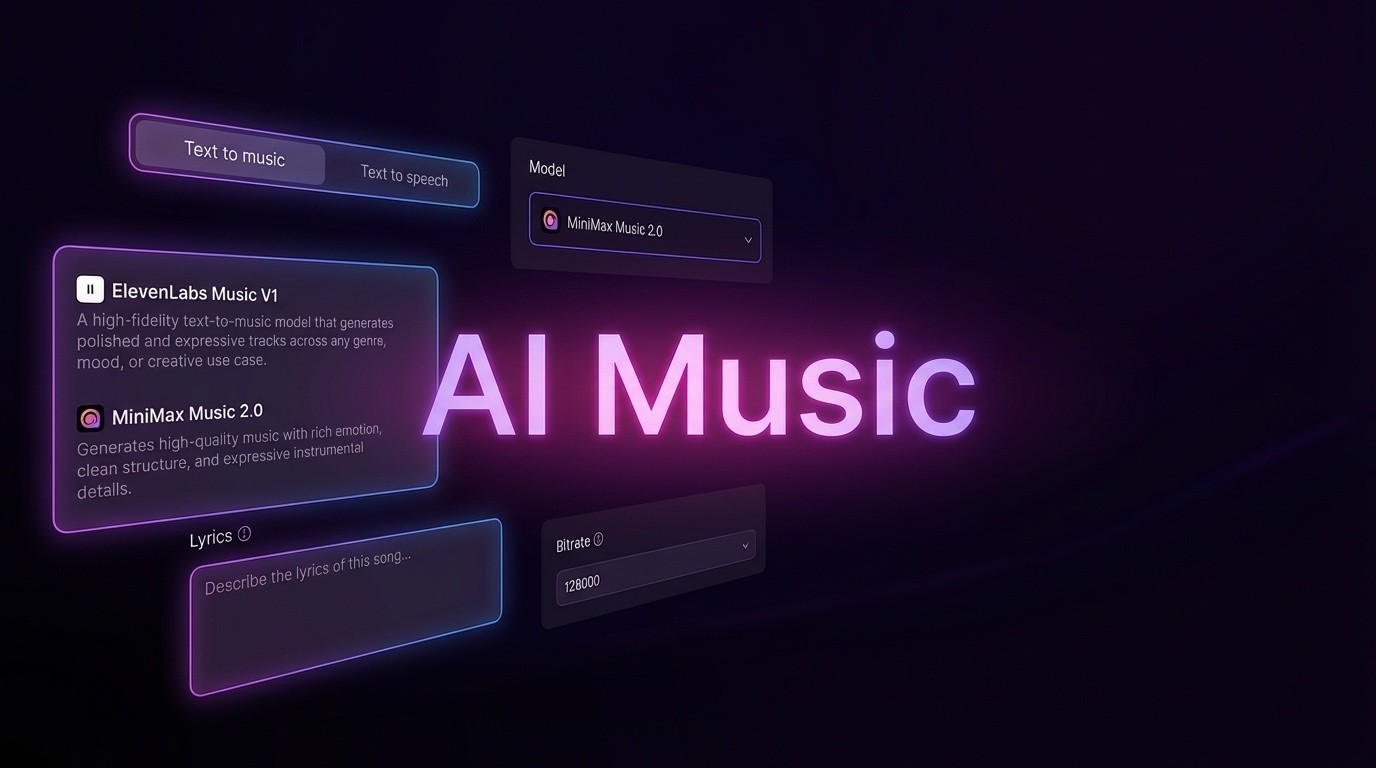
AI Music Generator
Create music from videos with AI

AI Song Generator
Create songs from videos with AI
Suno AI Music Generator
Create Professional Music with AI
Seedance2.0
The Future of AI Video Is Here.
Happy Horse 1.0

Veo3.1
Create Stunning Videos with Veo3.1
Why AI Filmmakers Choose MiniMax H3 to Video
Powered by MiniMax's H3 engine (also known as Hailuo 3.0), this text-to-video converter generates the audio track in the same pass as the visuals — so specifying sound effects and their exact timing actively shapes the footage. The result is 2K video with dialogue spoken on camera, lasting visual continuity, and multi-shot edits that follow your written order.
- Script-to-Video with Audio IncludedEnter your scene text and MiniMax H3 to Video generates motion with the soundtrack already in the file — visuals and sound are created in a single render pass.
- Spoken Lines Delivered in the TakeDesigned for vertical drama with close shots and shot-reverse-shot editing — dialogue is spoken as the clip is generated, removing the need for a separate dubbing process.
- Reference-Backed Visual ConsistencyUpload as many as nine images, three clips, and three audio references in one request, each with a named role — faces, locations, movements, and voices stay anchored to your source material.
Your Quick Guide to Creating Video with MiniMax H3 to Video
Produce a video in just three steps using MiniMax H3 to Video, right on Morphic's boundless creative canvas.
Key Features Built into MiniMax H3 to Video
From script to finished 2K release with audio intact, MiniMax H3 to Video brings text-to-video with sound, live dialogue in the shot, stable reference continuity, and timed multi-shot storytelling into one workflow.
One-Pass Video and Audio Generation
Describe your scene and receive footage with its audio layer already attached. The way you name a sound effect and time its cue directly shapes what MiniMax H3 to Video produces.
Live Dialogue in the Shot
Built for vertical drama, it handles tight close-ups and reverse-angle cuts while delivering the spoken line during generation — so performance and intonation arrive as one piece with MiniMax H3 to Video.
Support for Up to 15 Reference Files
Combine nine stills, three video clips, and three audio files in a single request, each labeled with its purpose — MiniMax H3 to Video then anchors faces, places, actions, and voices to those fixed inputs.
Temporal Multi-Shot Storytelling
Plan the timing in beats and multiple shots are returned in a single output — intros, UI walkthroughs, and product reveals unfold exactly in the order you specified with MiniMax H3 to Video.
Model Comparison Without Leaving the Canvas
Generate quickly, switch between alternative engines, and evaluate MiniMax H3 to Video results next to other models directly on the Morphic Canvas before you commit.
High-Definition 2K Output
This model outputs 2K video with the audio track embedded, making it ready for title cards, UI walkthroughs, and product showcase videos.
Common Questions About MiniMax H3 to Video
Quick answers to the most frequent questions about generating video from text with MiniMax H3 to Video.
What exactly does MiniMax H3 to Video do?
MiniMax H3 to Video is powered by MiniMax's H3 engine (also referred to as Hailuo 3.0) and functions as a text-to-video service. It turns a written scene into high-resolution footage with the audio track already included, rendering both sight and sound in one go.
Is the audio really generated alongside the video?
Yes. The sound is created in the same render as the image. Specifying sound effects and their exact timing influences the result, and spoken lines appear in the shot with no separate dubbing session.
What's the best way to get an accurate first render?
To get a good initial result, describe your subject, movement, camera angle, lighting, and audio cues, and include timing notes. MiniMax H3 to Video follows the structure of your prompt most closely when you clearly map out the beats.
Can I include reference images or audio?
Absolutely. In a single run you can attach nine images, three clips, and three audio files, each assigned a specific role. With MiniMax H3 to Video, a face, location, movement, or voice can be pulled from those fixed references.
Can I generate multiple shots in one go?
Yes. By breaking your video into timed beats, MiniMax H3 to Video returns several shots within one generation, letting title sequences, UI demos, and product reveals play out in the order you provided.
How can I compare MiniMax H3 to Video with other AI video models?
Inside the Morphic Canvas you can render quickly, change engines, and place MiniMax H3 to Video output next to clips from Kling 3.0, Veo 3.1, Seedance 2.5, and Vidu Q3 — all before deciding on the final edit.
Experience MiniMax H3 to Video Today
Convert your script into 2K video with the soundtrack already built in. With live dialogue, stable references, and continuous editing on Morphic's infinite canvas, MiniMax H3 to Video is ready whenever you are.